
Square Autodebit
Pre-requisite & Installation
Ultimate WooCommerce Auction PRO plugin supports Square Payment Gateway for processing payments of winning auction products.
When a user wins an auction product, they are required to complete the payment. For this purpose, Square provides a secure and reliable credit/debit card payment option for buyers.
Square is a trusted and widely used online payment solution that allows you to accept debit/credit cards and digital payments, commonly used in regions like USA, Canada, Australia, Japan etc.
Install & Configuration (Square)
Step 1 – Activate Credit Card (Hold & Debit) Addon
Go to WordPress Dashboard → Auction → License & Addon, activate the Credit Card (Hold & Debit) addon, and click Go to Addon Settings Page.
Step 2 – Install Square Plugin
On the addon settings page, click Square, then click the Square plugin and install & activate the WooCommerce Square payment gateway plugin.
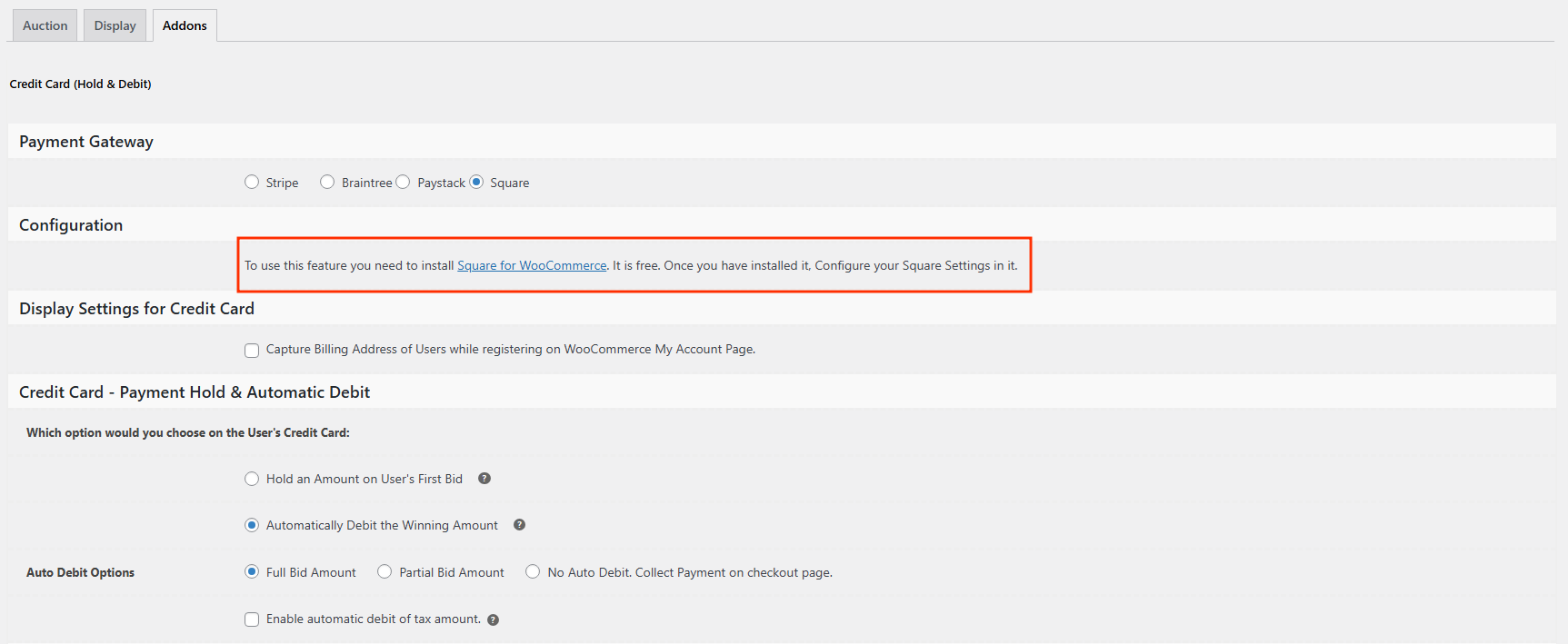
Step 3 – Enable Square in WooCommerce
Go to WooCommerce → Settings → Payments, find Square , click Manage, and enable the Square payment method.
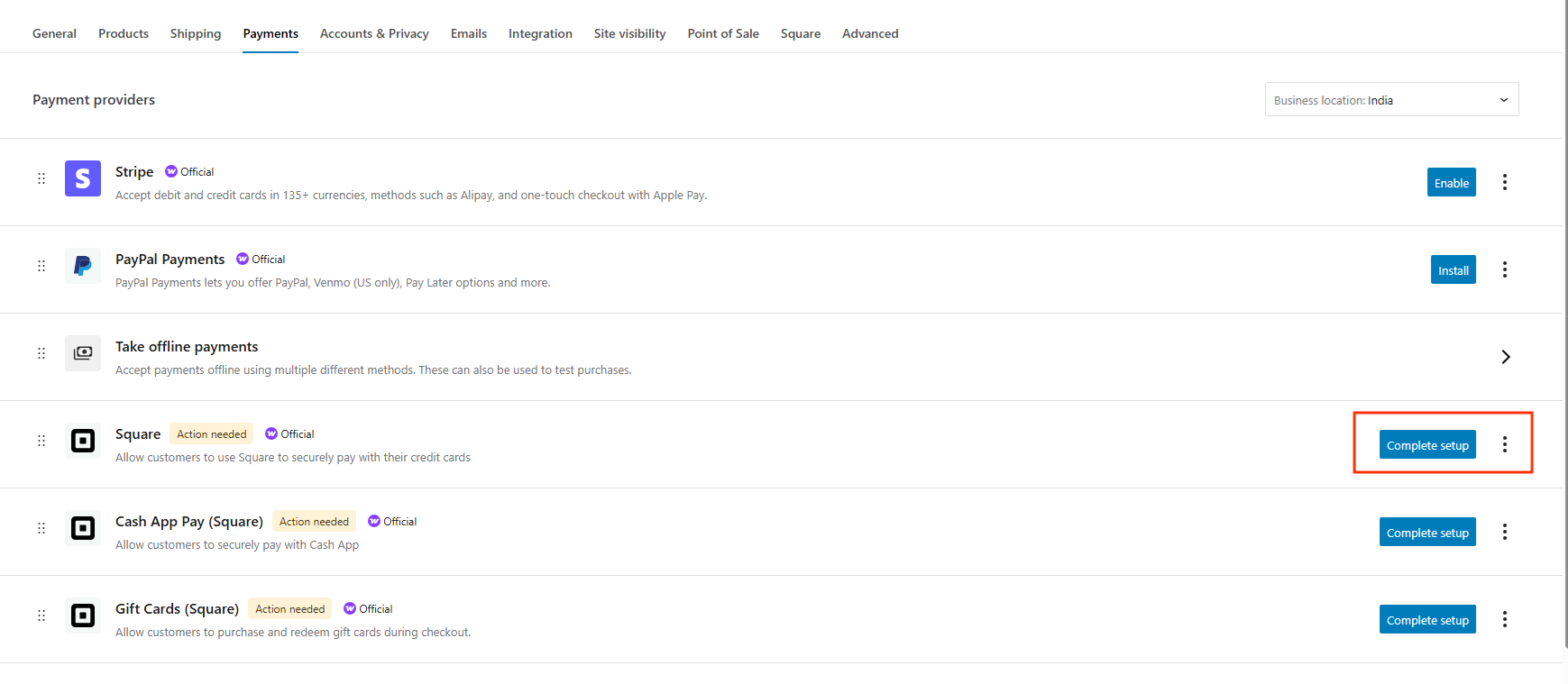
Step 4 – Configure Square API Keys
Log in to the Square Dashboard → Settings → API Keys & Webhooks, copy the Test Public Key and Test Secret Key, paste them into the Square settings in WooCommerce, and save changes
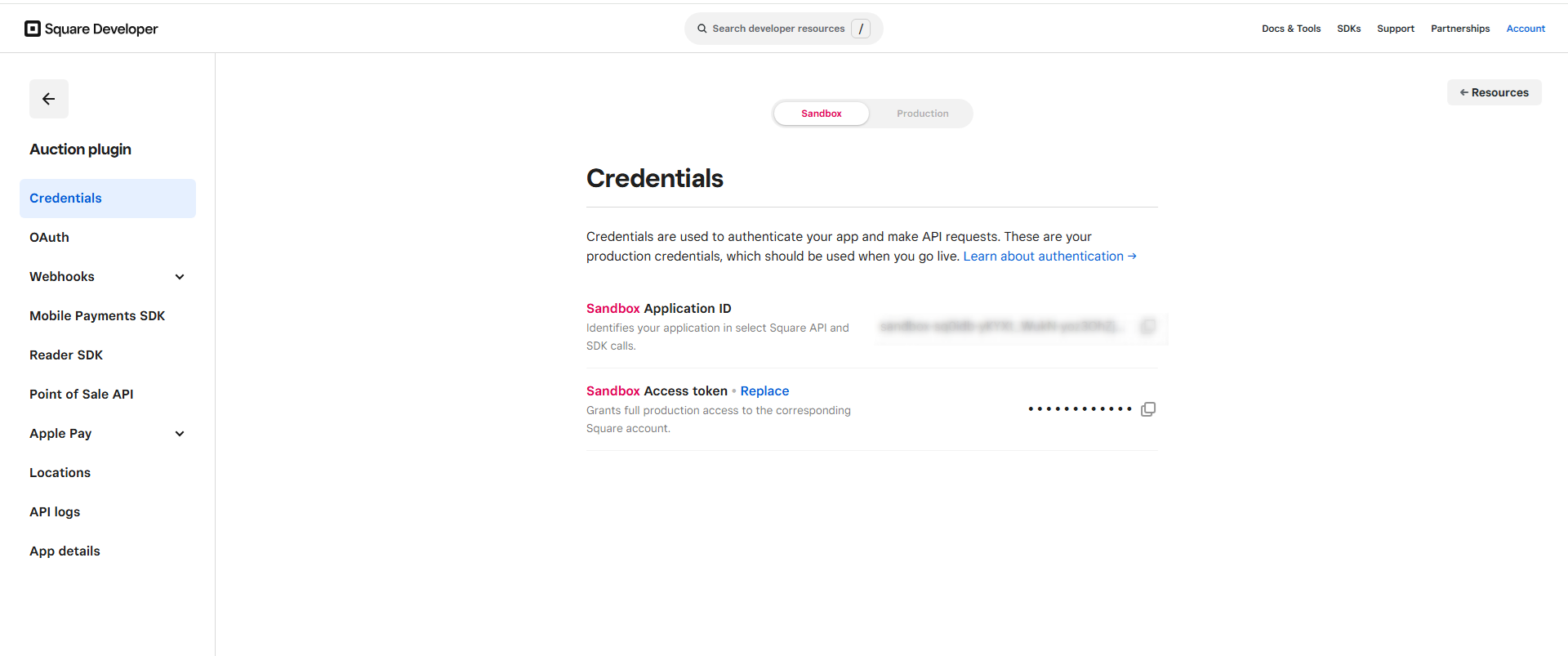
Step 5 – Enable Credit Card Hold & Automatic Debit
After completing all Square settings, go to Auction → License & Addon, click on Credit Card (Hold & Debit), then navigate to Credit Card – Payment Hold & Automatic Debit and select Full Bid Amount.
With this option enabled, once the auction ends and a user wins, the full bid amount is automatically debited from the winner’s card.
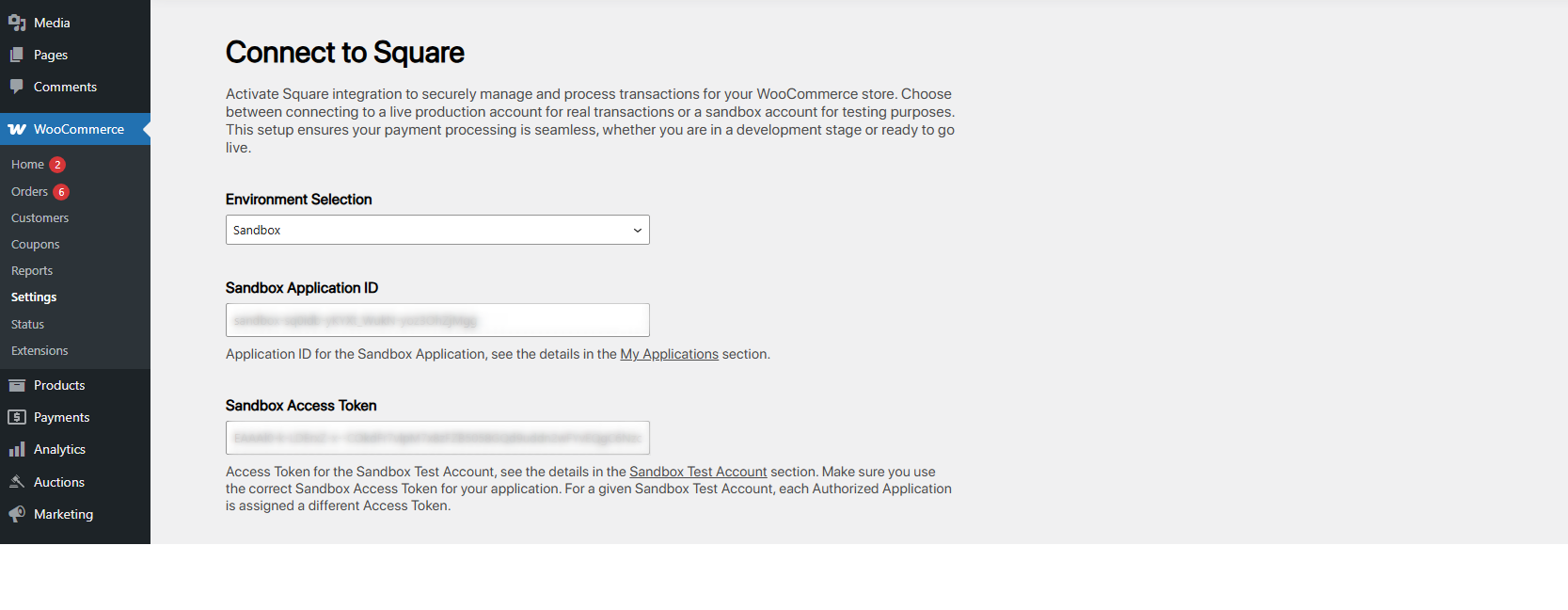
Step 6 – Auction Winner Payment & Order Confirmation
After the auction expires, the winning user will see the Get It Now button. The user can click this button and complete the order.

Once the payment is successfully processed:
- The transaction will appear in the Square Dashboard
- A corresponding order will be created in WooCommerce
- The order status will be updated accordingly in the WooCommerce backend